Google reviews
How to create a Google review QR code: step by step, free
A Google review QR code is simply your review link turned into a square. The link is free and the QR code is free; the real work is choosing the right link and printing a code that scans.
By NFCStand Editoryal Ekibi · Updated · 3 min read
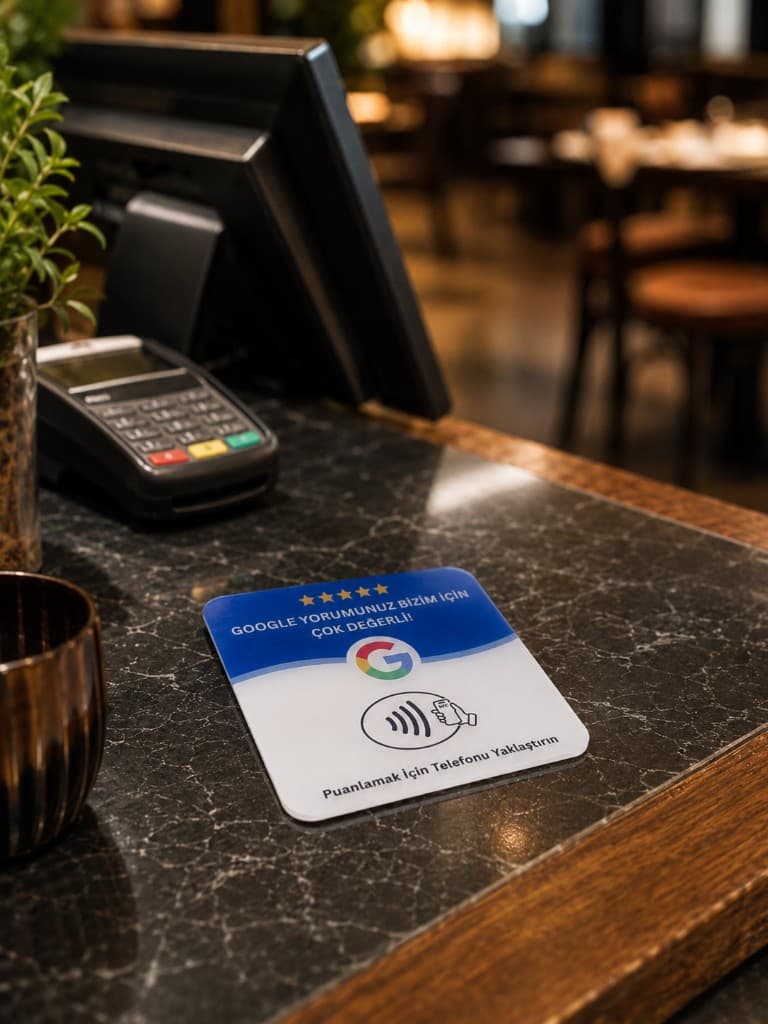
To create a Google review QR code, first copy the “Ask for reviews” link from your Google Business Profile, then turn that link into a static QR code. Both steps are free. When the code is scanned, the customer's phone should open the screen with the stars and the text box directly; if a map or the profile page opens, the link is wrong.
1. Get the right link
When you search for your business name with your manager account, the panel that appears has an “Ask for reviews” option. Copy the short link in the window that opens; for most accounts it starts with g.page/r/… and ends with /review. Some accounts also offer a downloadable QR code in the same window — if you see it, you can use it directly.
2. Turn the link into a static QR code
Paste the link into any QR generator and choose the “static” or “URL” type. Tools that ask for registration, a trial period or a monthly fee usually create dynamic QR codes: the code goes to their address first and may stop opening when the subscription ends. Your review link does not change, so you do not need a redirect.
3. Print it so it scans
- Size: at least 2.5–3 cm per side for a counter or table; larger if it will be scanned from a distance.
- Contrast: a dark code on a light background. Inverted colours and low contrast make scanning harder.
- Quiet zone: leave a white margin around the code; logos or frames should not touch it.
- Surface: glossy lamination reflects light; in bright spots a matte surface scans more easily.
- Call to action: add a short line below the code — “Share your experience on Google”.
4. Test before printing
Scan the code with both an iPhone and an Android camera, on a phone that is not signed in to the business account. The review screen should open. If you have several branches, test each branch's code separately and label it with the branch name; putting the head-office code in a branch sends reviews to the wrong profile.
Adding NFC next to the QR code
QR is familiar to anyone who knows their camera, but it asks the customer to open the camera and aim. NFC only asks them to hold the phone close. On our stands, the same review link is written onto the NFC chip and printed as a QR code; the Google Review NFC Card is NFC-only and a compact option for narrow counters.
Frequently asked questions
No. The review link comes free from your Google Business Profile and can be converted into a static QR code for free. You only pay for the product or print that carries the code.
A static QR code that carries your review link directly does not expire. Dynamic QR codes tied to a redirect service may stop working when the subscription ends; for reviews, a static QR code is enough.
Both open the same link. With NFC the customer holds the phone close; with QR they open the camera and aim. Offering both at the counter also covers phones with NFC turned off.
Related products
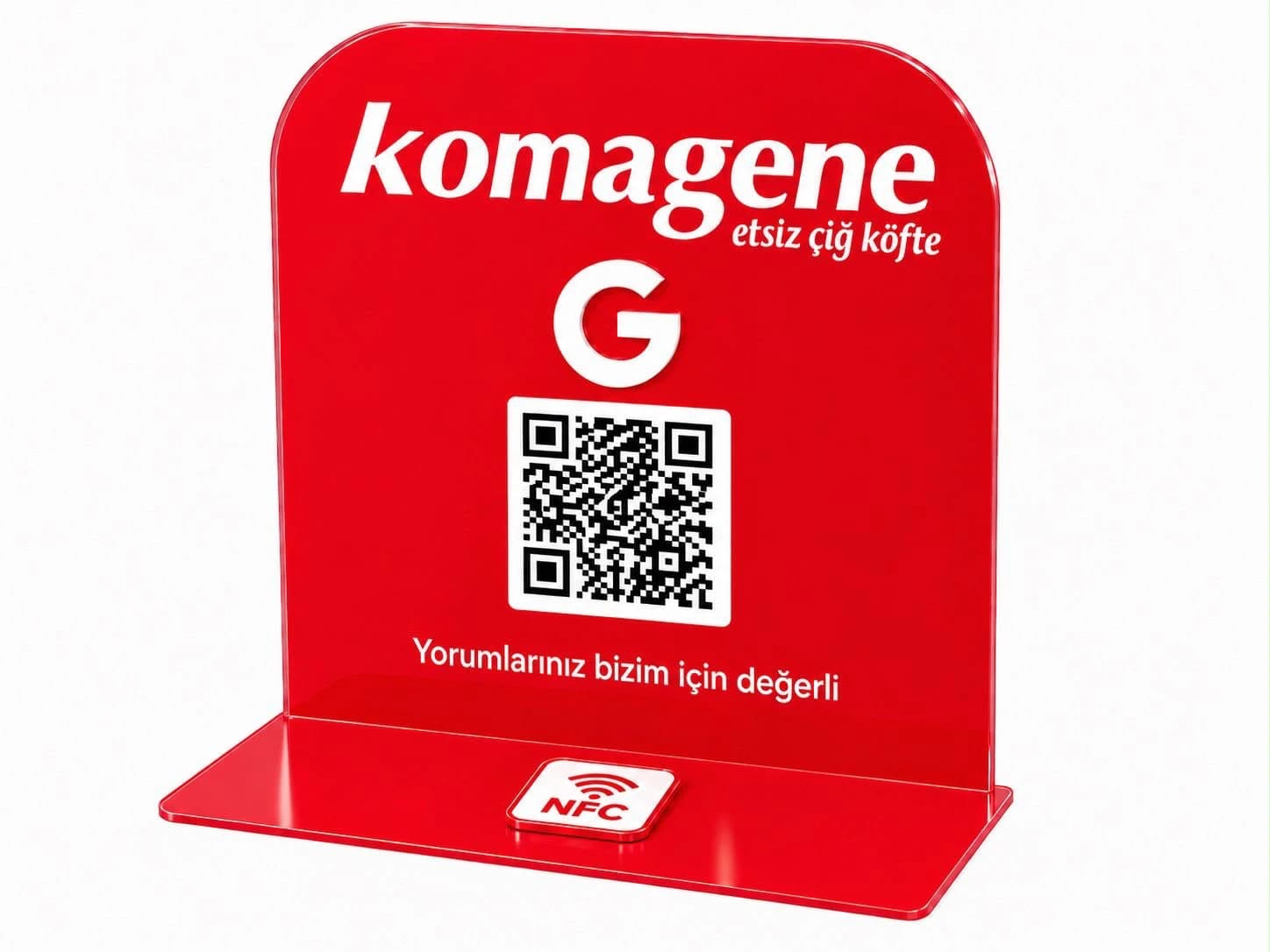
Solo Acrylic NFC Stand
A single-channel stand — one NFC + one QR leading to the one link you choose (usually Google reviews). Place it at the checkout; customers tap.
TRY 1,899
View product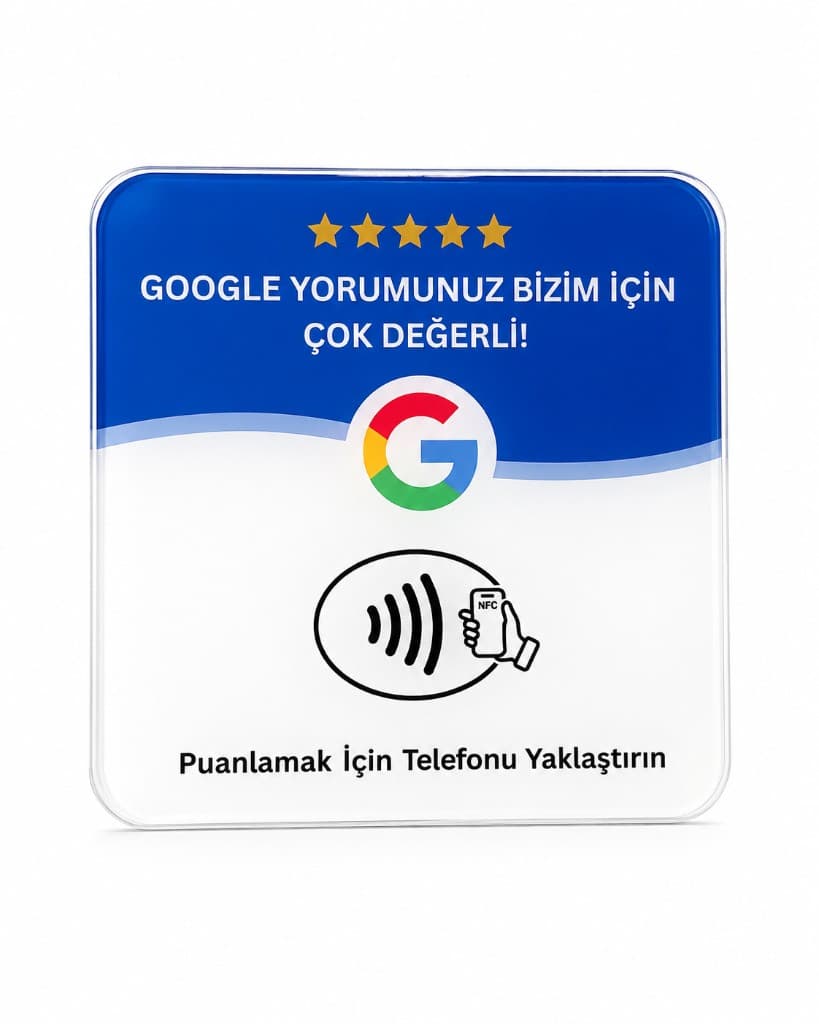
Google Review NFC Card
A customer taps their phone at the counter and your Google review form opens in seconds. A compact NFC card with a ready-made template.
TRY 648
View productRelated guides
Google reviews
13 August 2026 · 4 min read
Google review link: not a search result, the direct review form
The wrong link leaves people wandering around the map. The right link opens the screen with the stars. Only the second one goes onto the chip.
Read the guide →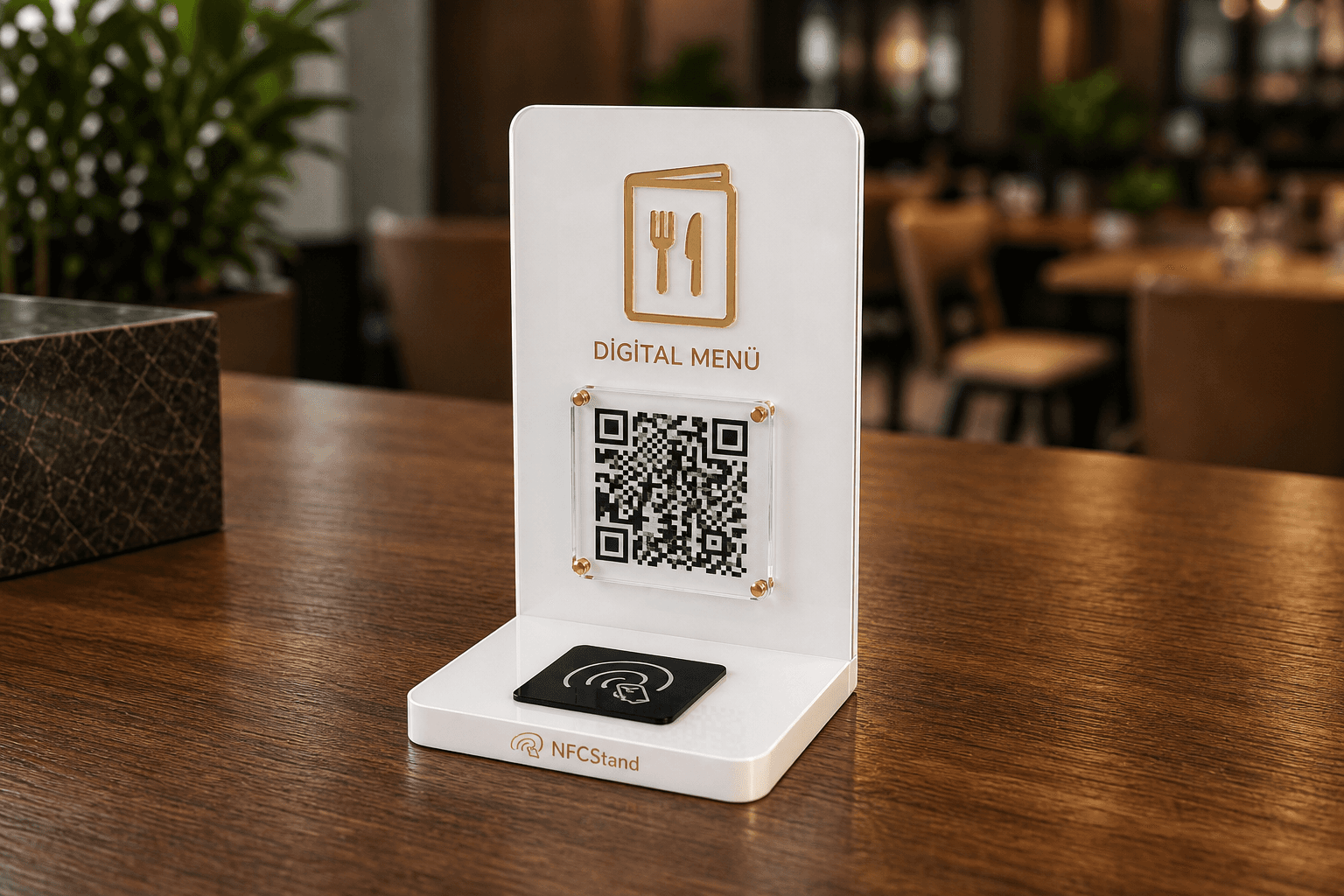
NFC & QR
13 August 2026 · 3 min read
QR code vs NFC: which is faster, and why we print both
QR needs a look and some aiming. NFC is touching the edge of the phone to the stand. The seconds look small — at a busy checkout they add up.
Read the guide →