Google reviews
Google review link: not a search result, the direct review form
The wrong link leaves people wandering around the map. The right link opens the screen with the stars. Only the second one goes onto the chip.
By NFCStand Editoryal Ekibi · Updated · 4 min read
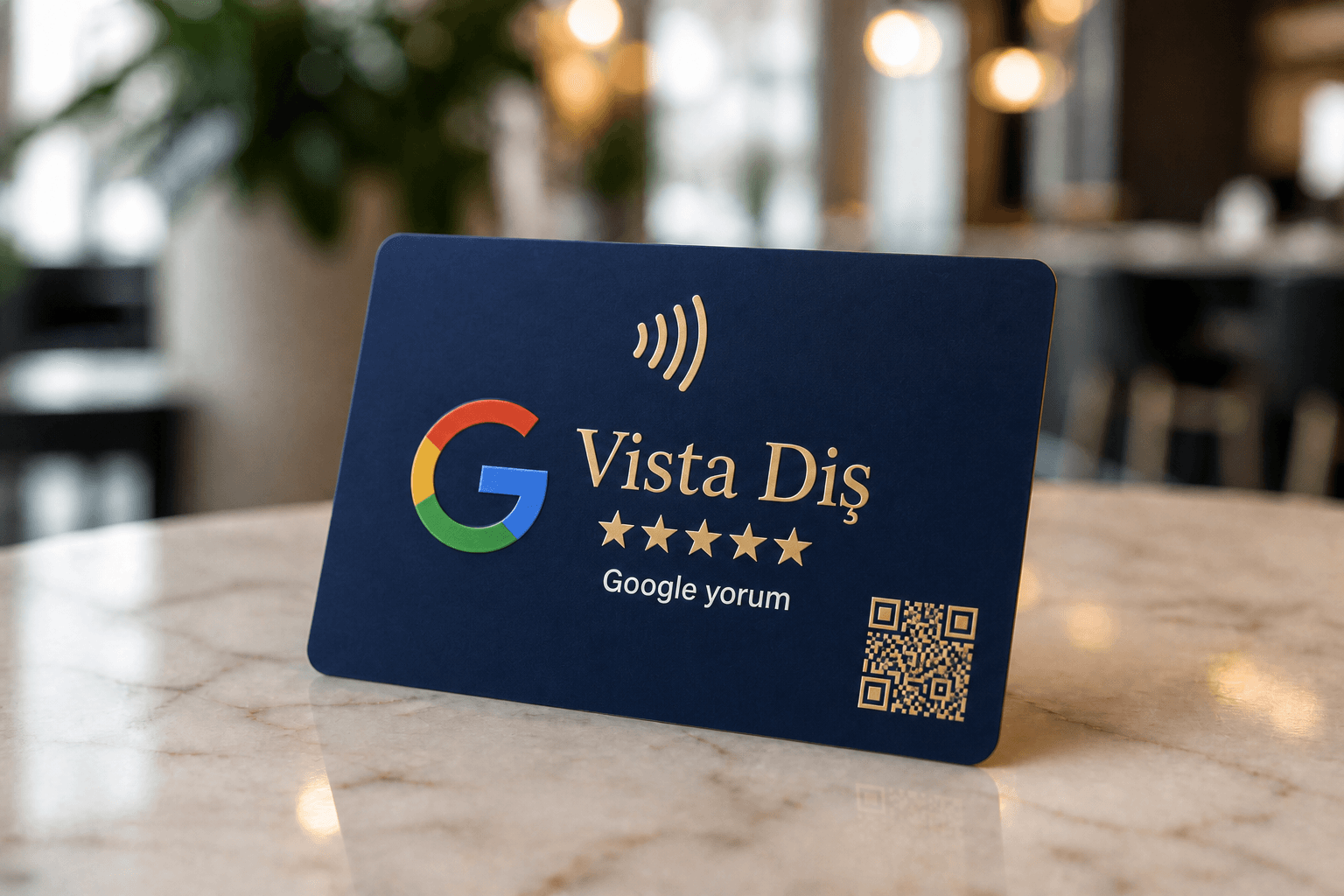
The most common sticking point when ordering is what the “Google link” actually is. It is not the map location. It is not a search result. Most of the time it is not the profile's main page either. What you need is the short review link that, when opened in a browser, shows the stars and the text box.
Where to find it in your profile
Sign in to your Google Business Profile as a manager. Copy your personal link from the share, short name or “Ask for reviews” tools. The interface moves around from year to year and names change. What stays the same is this: when you open the link in a private window, the review-writing screen must appear. If it does not, you are still on the profile link — and we do not write that onto the chip.
- If the profile is not verified, the form will not open. Finish postcard, phone or video verification first.
- If you have several branches, each location has its own link. Do not write the head-office link on a branch card.
- The short link (g.page or maps.app.goo.gl variants) fits on the chip; a long map URL also works but looks messy in a QR code.
Step by step on a computer
- Sign in to Google with the account that manages your Business Profile.
- Search for your business name; the profile management panel appears above the results.
- Click “Ask for reviews” in the panel.
- Copy the short link in the window that opens. For most accounts it starts with g.page/r/… and ends with /review.
On a phone: Google Maps or the Google app
In Google Maps, switch to your business profile from your profile icon. From “Ask for reviews” or “Share profile” you can copy the same short link or send it straight to WhatsApp. Menu names vary with the app version; look for the share option that mentions reviews.
Is the link right? A thirty-second test
- Open the link in a private (incognito) window: the stars and the text box should appear directly.
- Repeat the test on a phone, in a browser that is not signed in to the business account.
- If a map, photo gallery or profile summary opens, the link is wrong — copy the review link again.
- If you have several branches, label each link with the name of its branch.
How to send it to us
Paste the link into your order note or send it on WhatsApp. We write the chip during production. Before shipping, we ask you to check it once more from your own phone: “it opened for us” is not the same as “it opened with your Google account”. A locked profile, the wrong branch or a business that is not live yet — all three are cheap to catch on order day, not on delivery day.
Where you can use the review link
- An NFC card or stand at the checkout: the form opens when a phone comes close.
- A printed QR code: on receipts, table cards or delivery packaging.
- WhatsApp: below a short thank-you message after an order or appointment.
- Your email signature and invoice emails.
- The contact or thank-you page of your website.
Wherever you use it, the rule is the same: everyone who wants to share their experience gets the same link with the same sentence. Sending the link only to customers who seem happy, or giving discounts for reviews, is against Google's policies.
Frequently asked questions
No. A map or location link leaves the customer on the map; a review link opens the screen with the stars and the text box directly. Only the review link is written onto the chip.
No. Each location has its own Google Business Profile and therefore its own review link. Writing the head-office link on a branch card sends reviews to the wrong profile.
No. The link is created free of charge with Google Business Profile's own tool. You only pay for the physical product that carries it — a card, a stand or a print.
As long as the same profile is used, the link usually stays the same. If the profile is recreated, merged or moved, test the link again in a private window; if needed, the NFC chip is rewritten.
Yes. The same short link can be converted into a QR code. On our stands, NFC and QR open the same review link; the Google Review NFC Card is NFC-only.
Related products
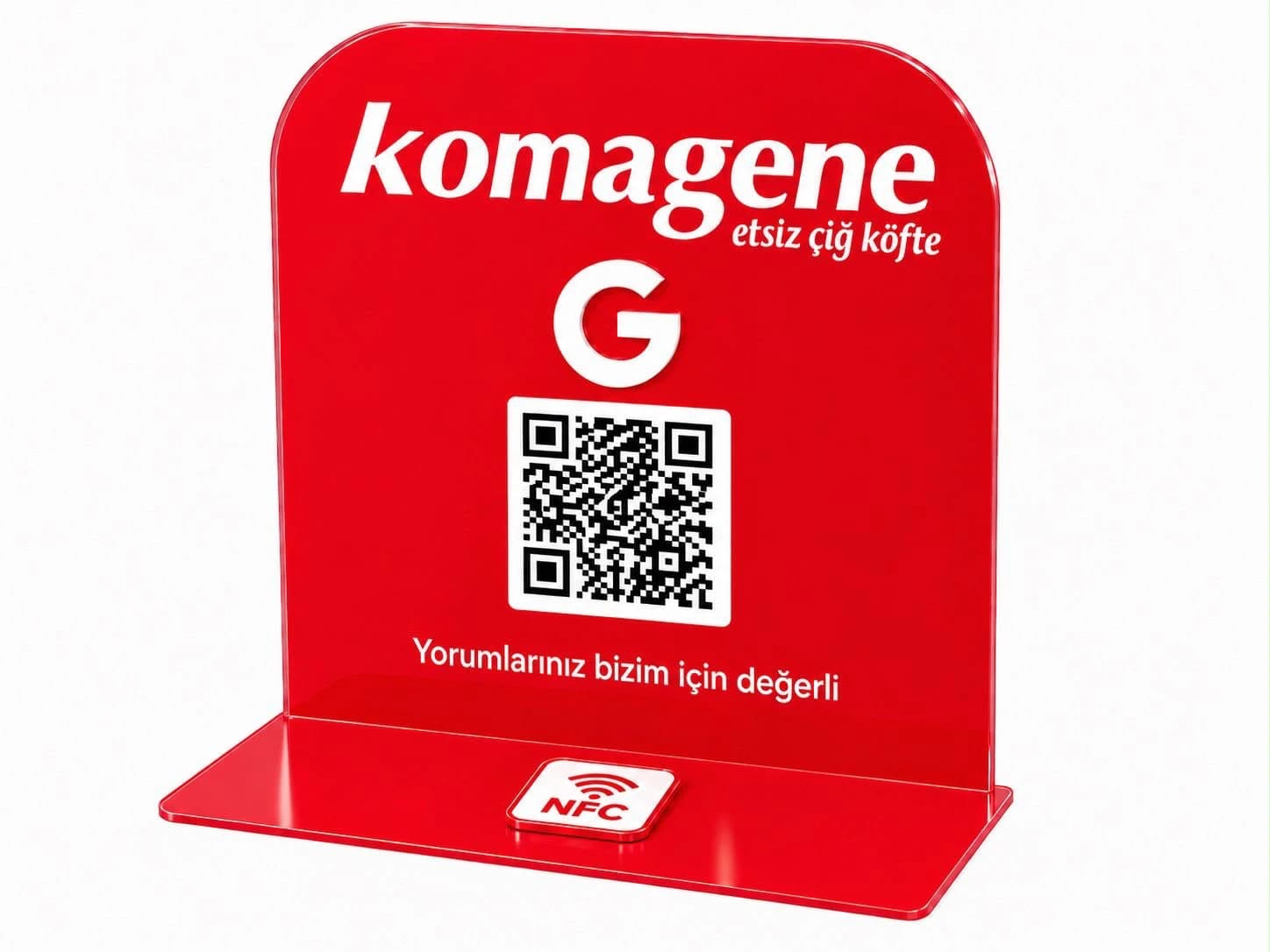
Solo Acrylic NFC Stand
A single-channel stand — one NFC + one QR leading to the one link you choose (usually Google reviews). Place it at the checkout; customers tap.
TRY 1,899
View product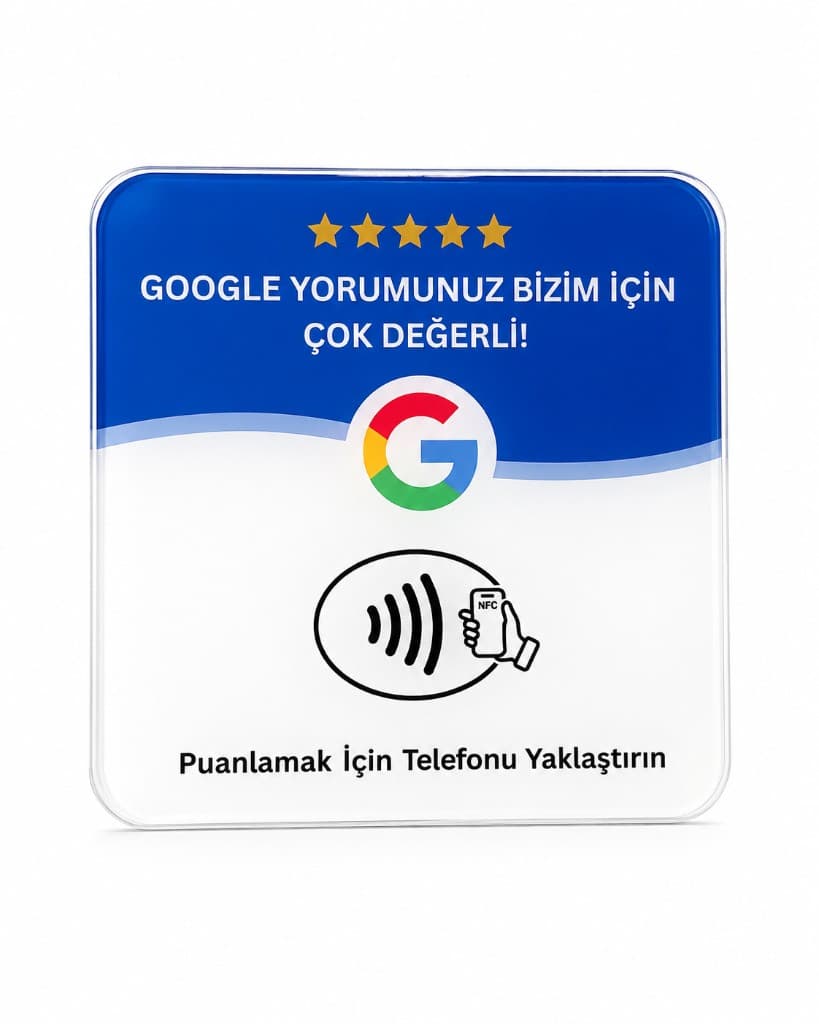
Google Review NFC Card
A customer taps their phone at the counter and your Google review form opens in seconds. A compact NFC card with a ready-made template.
TRY 648
View productRelated guides
Google reviews
23 August 2026 · 3 min read
How Does a Google Review Card Work? NFC Usage Guide
The Google Review NFC card opens your official review link — stored on an NTAG213 chip — through the phone's NFC notification. No QR code, no app to install.
Read the guide →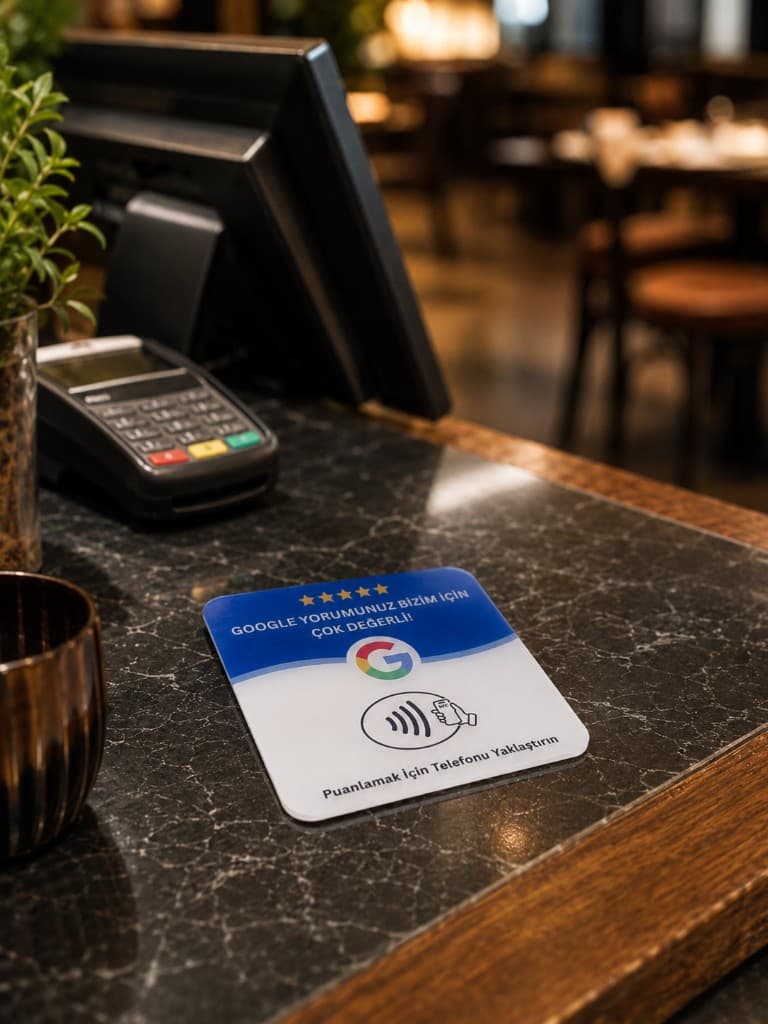
Google reviews
24 September 2026 · 3 min read
How to create a Google review QR code: step by step, free
A Google review QR code is simply your review link turned into a square. The link is free and the QR code is free; the real work is choosing the right link and printing a code that scans.
Read the guide →